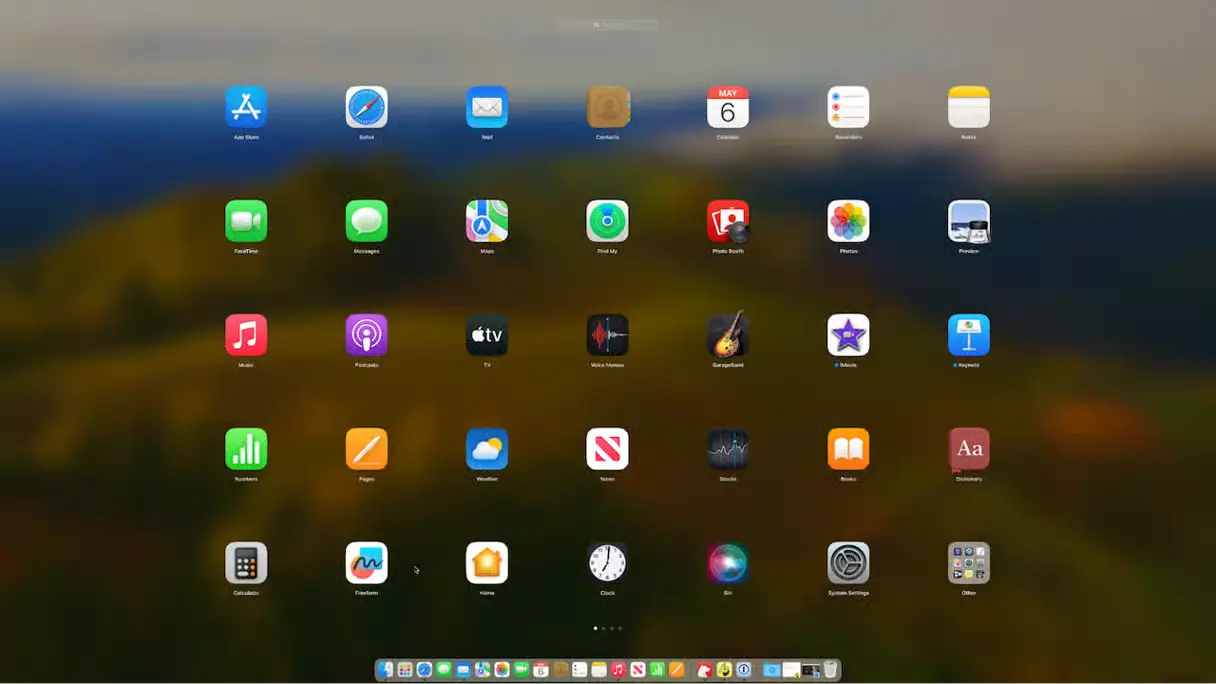
The Launchpad is very useful if you want to access items quickly and without a problem. But sometimes, there are situations when apps are not appearing in the Launchpad, so you really need to figure out a proper way of fixing that. Thankfully, there are different ways to handle these issues, and here you have a list of ideas to help you fix stuff.
How can you make apps appear in the Launchpad?
One thing to note here is that if you want apps to appear in the Launchpad, you drag them into the applications folder as they get installed. If you get past this step, you might have apps missing from the Launchpad. It happens at times, but thankfully this is fixable.
Select the option to see all the apps
You can use a Mac cleanup tool and then select the option to see all the installed apps. If some apps are not viewable, delete them and reinstall again. It could help, as maybe the entry of that app was not handled properly during its initial installation.
Restart your Mac
When you are trying to figure out how to fix apps not showing in Launchpad, restarting is a good idea. Restarts are a great way to fix many issues on your Mac. And yes, before you do anything, it certainly makes sense to restart your device, just to be on the safe side. It will eliminate possible issues, while also making sure that you’re not dealing with problems.
Check the app in the Applications folder
As we said earlier, the app needs to be in the Applications folder if you want it to appear in the Launchpad. So it makes a lot of sense to check the app in that folder. If not, moving it there will usually solve the issue. It’s one of those simple things that will be very handy, and in the end it could help you solve this problem, which is crucial to take into consideration.
Reset Launchpad
Of course, the issue might be within Launchpad itself. And in this case, you do want to take your time and reset the Launchpad properly. There are a few steps that you need to follow here:
- Enter Finder, and then select the Go menu
- Here you want to enter the Library folder, Application Support and then choose Dock
- Now, drag all the .db files in the Trash, and empty the trash
- Once you do that, you can open the Launchpad and look for the app you want
It’s a very good idea to try things out this way, because it will streamline how everything works, and you will be able to access everything without any hassle. Yes, it does take some trial and error, but once you do that adequately, it will only make things better. And at the end of the day, it’s imperative to avoid any rush, and just streamline the experience in a way that’s cohesive and highly professional.
Are there alternatives to the Launchpad?
Naturally, there are times when you just don’t want to use the Launchpad in the first place. And thankfully, there are some alternatives you can find. It’s up to you to figure out what app delivers the best results, and overall, it’s only going to make the experience better.
- Add an Applications folder to the dock. That way, you are not relying on Launchpad anymore.
- There’s an app called Launchie which mimics the Launchpad. It offers many customization options, it’s very similar to the launchpad, while also being lightweight. If you want a minimalist Launchpad with some great custom features, this is maybe the right way to go.
- AppGrid’s launcher is another good Launchpad alternative for Tahoe. The great idea here is that you can easily customize your launchpad in there without a problem, and it will only streamline the process.
- If you don’t want to have the Launchpad open but you still want the app list, you can use Folder Peek to show a list of the apps you installed, right from the menu bar. It’s actually very streamlined and easy to use, and you’ll find it to deliver a very good experience, which matters the most.
Conclusion
If apps are not showing in Launchpad, these are some great tips and ideas for you to follow. At the end of the day, you always want to have apps shown in the Launchpad, so it makes a lot of sense to check them out for yourself. Not only will that help make the process easier, but it will also connect to your workflow with ease. And as we said, there are also alternatives that you can try out, from apps to various folder styles and so on. What matters is to access your apps properly, and these tips shown above will help you do that.
For even more news from the world of Mobile Gaming click here