

On Friday evening, I arrived home at about 6.30pm. I had my girlfriend in tow, having picked her up from work for a lovely weekend together. We don’t see each other often, as she lives an hour away. Waiting for me on my desk was a brown, cardboard box, with CoolerMaster tape all over it. “Cool,” I thought, “I’ll have a very quick look at this keyboard I’ve been sent for review, and then I’ll spend the most-part of the evening watching bad TV”.
How very wrong I was. After plugging the CM Masterkeys Pro L into my PC, I went into a state of awe. Colour flashed before my eyes as I touched the keys, reading the manual frantically to find out how to change profile and make ever more pretty things happen. I only realised that I’d been playing around with it for hours when m’lady wandered through and gave me THE LOOK. The look that says “you’ve been on there for ages and we’re supposed to be spending time together, you prat”.
I replied simply; “But you can play Snake on it!”

Who What When Where Why?
Coolermaster are well-known for their high-quality gaming products, and at present they seem to have two comparable series’ of high-end keyboards, both costing around £100-£130 at the top end; The CM Storm MECH family, and the Masterkeys Family. Their CM Storm range is their “pro-gamer” focused side, with a focus on macro-keys and portability, whilst their Masterkeys range is focused on style and all-around everyday usage, and it’s this family which I’ll be talking about today.
The Masterkeys boards come in two types; L and S, with the only difference being that the L model has a num-pad, whilst the S model doesn’t. Both versions are available with Red, Blue or Brown Cherry switches; it just so happens I have brown.
The whole idea behind this family of keyboards seems to be a mix between a designated gaming keyboard and an all-purpose everyday device, with extensive macro key-overwriting and completely customisable LED backlighting.



Let me just find my Specs (and features)…
| Model Number | SGK-6020-KKCM1-US (Brown Switch) |
| Switch Type | CHERRY MX |
| Material | Plastic / Metal |
| Color | Black |
| LED Color | RGB |
| Polling Rate | 1x / 2x / 4x / 8x |
| Response Rate | 1ms |
| MCU | 32bit ARM Cortex M3 |
| On board Memory | 512KB |
| On-the-fly system | Macro Record and Lighting |
| Cable manager | 3 ways, 180 degrees cable management grooves |
| Cable | Detachable with Micro-USB |
| Software AP | Yes, Supports GUI Software |
| Connector Cable | USB 2.0 |
| Cable Length | 1.5 Meters |
| Dimensions | 439.23 x 130.32 x 41.95 mm |
| Product Weight (without cable) | 1090 g |
| Warranty | 2 years |
- Cherry MX RGB Switch
- RGB LED Backlight (16.7m colors support)
- ARM Cortex M3 32bit CPU with 72MHz
- F/W on-line update
- Repeat rate Adjustment
- On the Fly Macro key Recording
- Win Lock
- Multimedia Function
- AP Support
- Minimalism ID Design
- 5m Braided cable with gold plated connector
- Top cover Matte UV Coating
- Metal Plate Inside

Not bad stats by any means, and there are only two features which I feel are missing from the keyboard. Until this arrived, I was using a Corsair Vengeance K90, which allows you to change volume simply by spinning a roller on the top right of the peripheral, allowing easy control of volume at a moment’s notice. Whilst it’s only a minor complaint, in comparison, having to hold “FN + Page Up/Page Down” on the CM Masterkeys to control volume is a bit of a chore. The absence of USB pass-throughs is also a little disappointing, but again, it’s only a minor complaint. Overall the feature list is very impressive, with a variety of customisation options to suit and enough power under the hood to successfully support them without compromising the response rate.
It looks good on paper, despite the braided cable being a little short for certain configurations, but you can never be sure until you’ve been hands-on…

Look at me! Look at me! – Appearance and build quality.
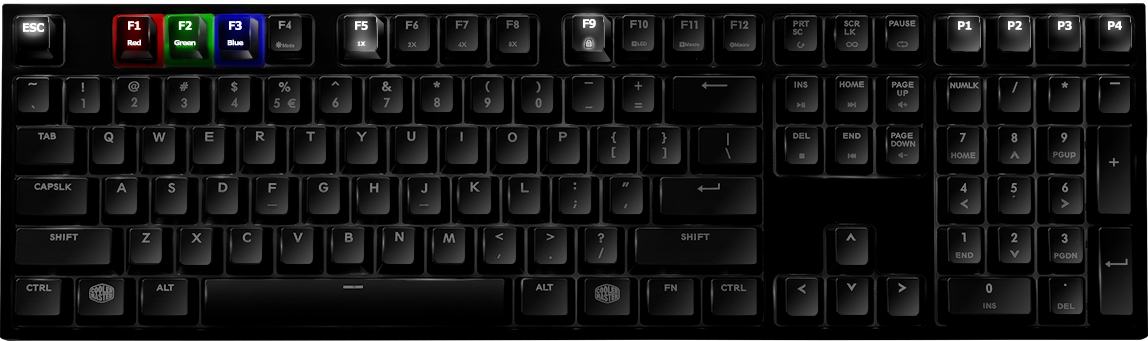
When turned off, I won’t lie, it isn’t the most impressive looking little chappie. Plain, matt black with white paint behind the keys and a pretty standard layout, without a good hard look it would be easy to mistake this for any other generic keyboard. The only real tells are the high-quality braided cable, the FN (function) button; commonly only seen on laptops; the CM logo replacing the Windows key and the strangely labelled buttons on the top row.
On the bottom of the keyboard you’ll find customary flip-out angle supports and an interesting setup of grooves, designed to allow flexibility and choice in terms of cable protrusion. It’s a really nice idea, which somewhat circumvents some of the issues I had with the cable length, and that I personally haven’t encountered before, though I know it’s been in use for a number of years. The cable also separates from the keyboard entirely, as it’s simply a micro-USB connector, (Think “phone charger wire,”) so if you were pushed for length you could theoretically find a longer equivalent wire to plug in. This also could come in useful for wandering gamers; those who frequent LAN parties and the like.
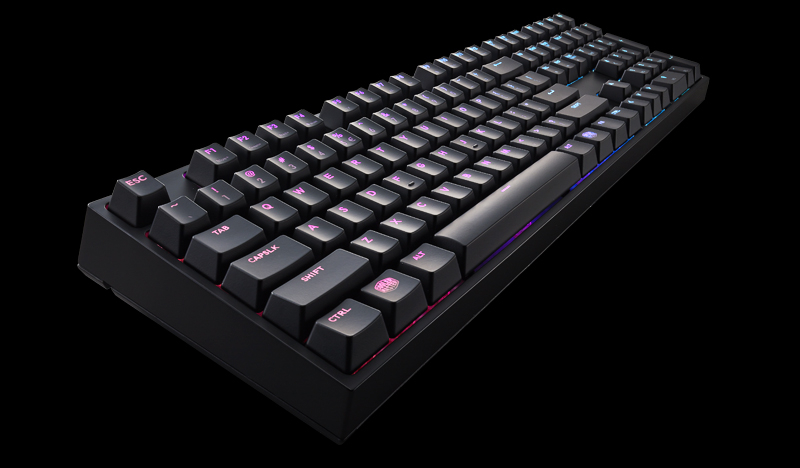
The whole thing has a really nice, heavy feel, which reassures that it’s a well-made product which isn’t going to smash if I drop it. It exudes class and professionalism whilst turning its back on the in-your-face look of many gaming keyboards. Whilst as a teenager I would have appreciated and preferred the over-stated look of other gaming keyboards and mice, I feel that this fits the person I’ve become now I’ve begun my actual career, and that it would also be a good fit for other young professionals (like myself) who also enjoy their games a bit more than they should!
You can call me “Mr Fancy-Pants”.
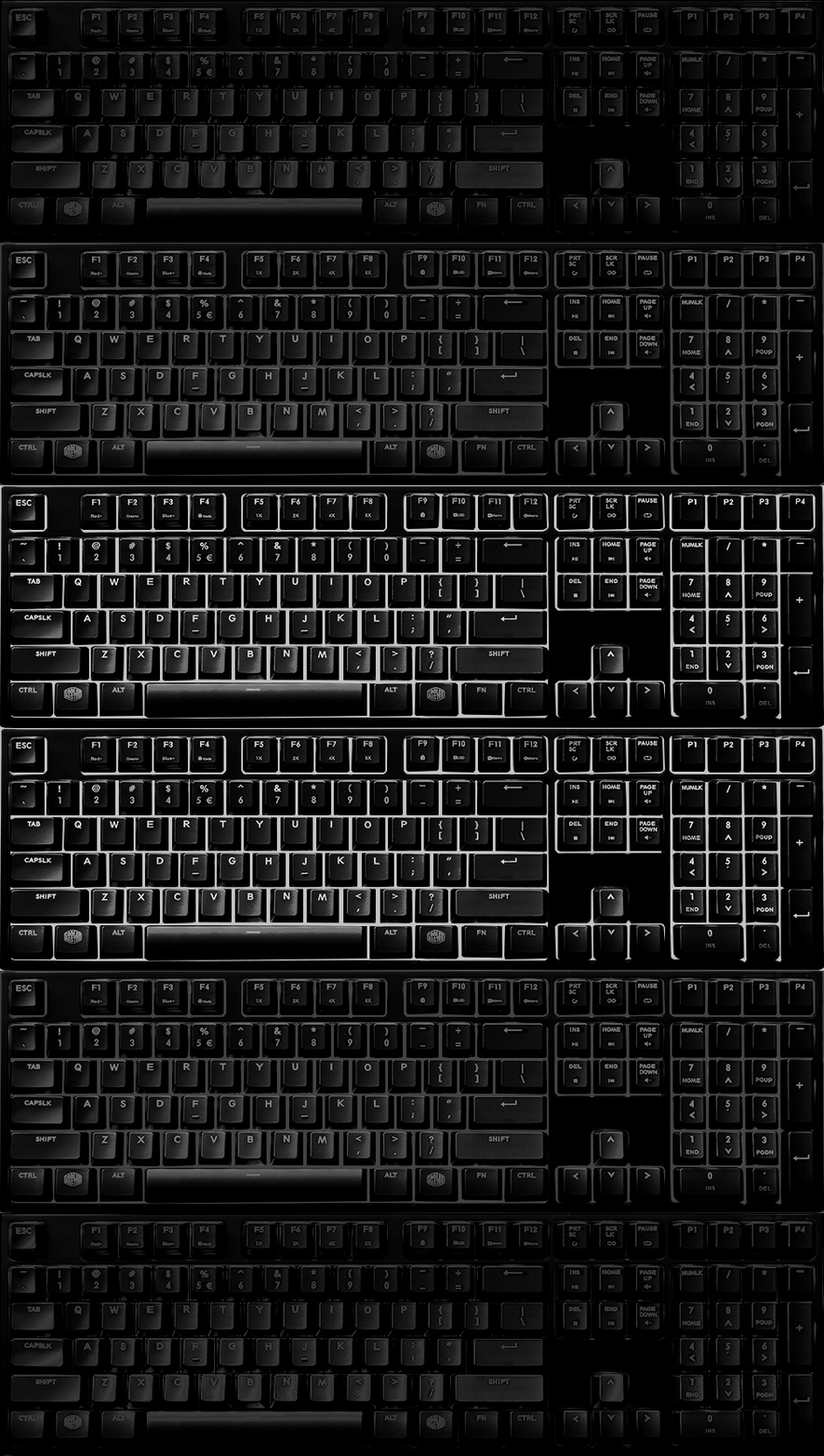
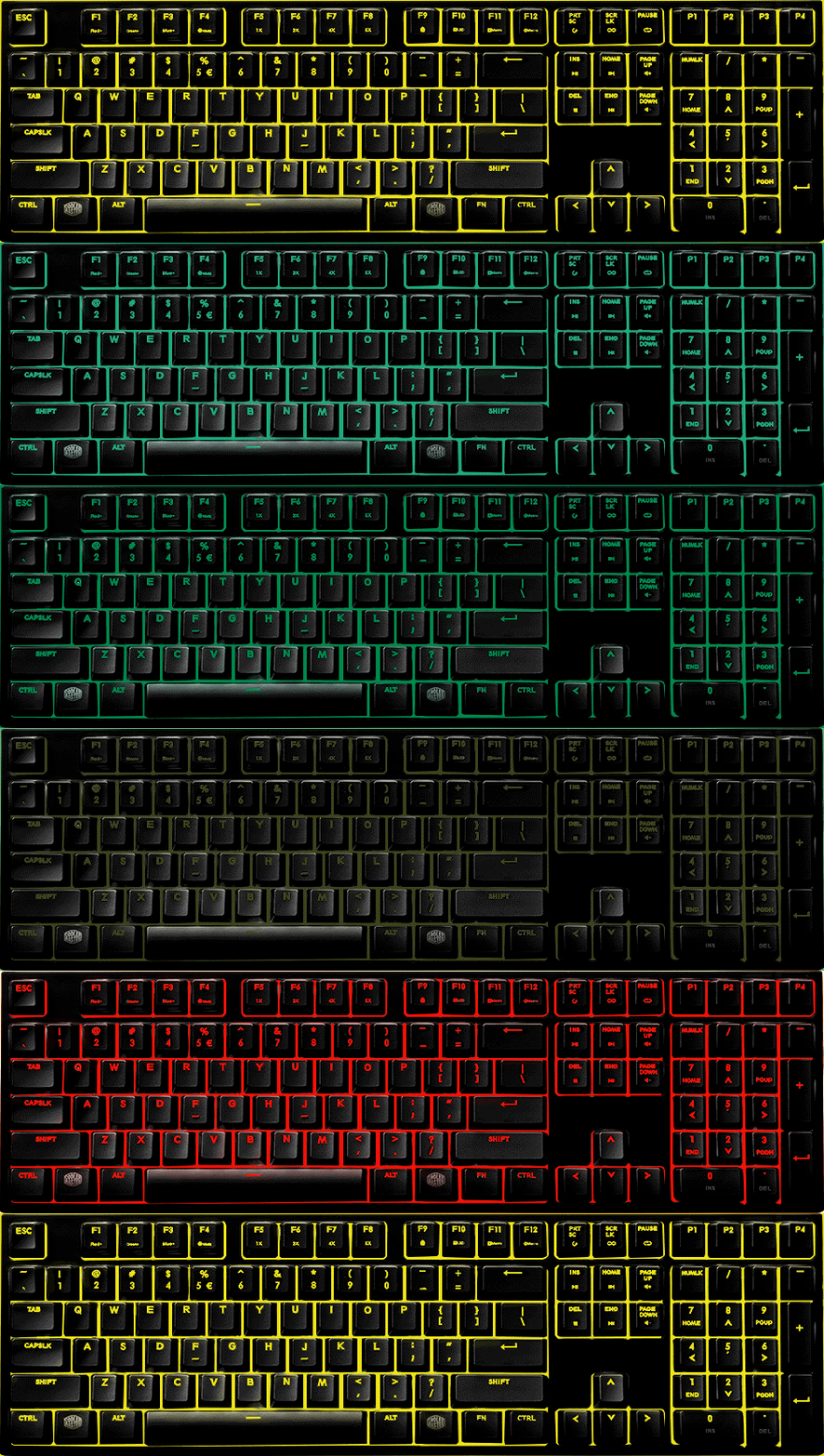
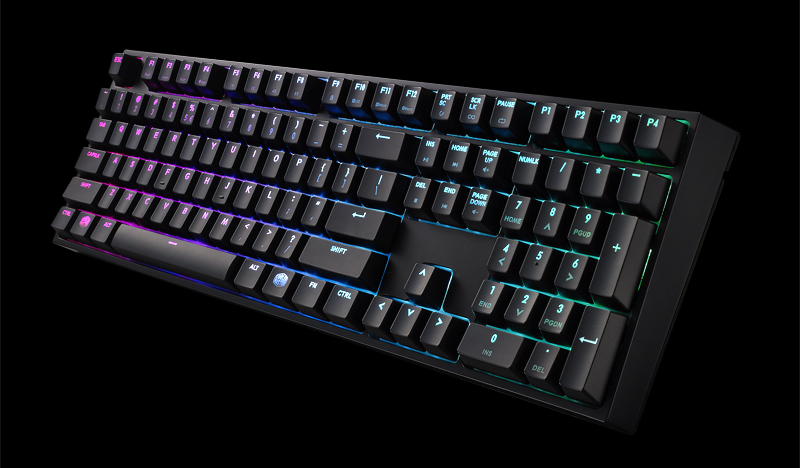
…But that doesn’t mean you should underestimate how flashy the CM Masterkeys CAN be. Yes, on the outside it looks professional and basic, but once you turn it on you understand the real power behind it. The keyboard comes with a variety of cycling lighting modes which are fully customisable through either the keyboard itself or the downloadable software. I honestly preferred to use the program to customise using the software, which also automatically downloads and installs new firmware to your device quickly and easily.
At current, available modes include Static (a single colour for the entire board,) a variety of typing-activated modes (Ripple, Cross Mode, Single Key,) Colour Wave (which cycles the colours through the RGB spectrum across the entire board and looks GORGEOUS,) System status (which shows either a sound equaliser or CPU use,) Snake (?????), and Customise, which is arguably the most useful. All modes run smooth as butter, and switch instantly through the “FN-F4” combo. Most can be completely customised, with both active and background colours available for modification. My favourites are easily Colour Wave, Ripple (with random colours,) and the equaliser system status setting, which is actually active whilst I type this and listen to the latest Podquisition. All three are incredibly flashy and colourful, bringing life and excitement to any typing task; though for gaming they can be a little distracting.
Whilst gaming, I found myself primarily using the Customise function, which, after setting up correctly, improved my gaming quality of life considerably. In short, you can set each and every key to have its own individual brightness and colour, which led me to colour- code keys based on keybinds for the game I’m currently playing.
Here you can see my current customisation for The Witcher 3: Wild Hunt. As you can see, I’ve coloured my most commonly used keys red; so that I can easily find my bearings in the dark. I’ve coloured other commonly used keys yellow, again, as an impromptu reminder. Commonly used menu keys and quicksave are coloured various purples and my quick-use items are coloured green. I found myself constantly forgetting the shortcut for rest, so I coloured N orange. I’m sure you can see the pattern! For the number keys, I chose to colour them based on the sign they stand for, which has led to me switching between them more effectively without the risk of forgetting which key stands for which power. Finally, I gave the lighting mode toggle, the function key and the volume control keys a light glow too, so that when gaming late at night I can switch to different lighting modes or change volume easily without having to pause, get up and turn the light on.
This is the kind of complete lighting customisation I was looking for. When I’m working, I can have a flashy or interesting lighting mode active to keep my mood up, but when I’m gaming I can have a mode which doesn’t just look good, but which actively improves my overall experience.
In addition to this, it is possible to program macros into the keyboard on the fly. Whilst I don’t personally use them often, I can definitely see the appeal of them for some gamers, and whilst it’s a difficult system to figure out alone, within just a few minutes of viewing the keyboard’s video manual you can easily program a variety of functions to your keys. Unfortunately, for some reason there is no way to customise these macro’s using the pc itself, but once you know what you’re doing it isn’t too difficult. My only gripe on this note is the fact that there are no extra keys specifically for macros. However saying that, I can’t think of a single game which uses EVERY key on the keyboard, so I’m sure you could find at least one of them to reprogram, even if it’s one of the F1-12 keys.
One last thing; alongside all of these customisation options, there’s also a lighting mode with lets you play a simplified version of the classic game “Snake”. I certainly wasn’t expecting it, but it’s a fun distraction whilst you’re waiting for your Fallout 4 save to load.

Into the breach!
As previously mentioned, the Masterkeys enriches gaming through it’s lighting and macro capabilities, but the question remains; how good is it as an actual keyboard.
Very good, as it stands. I’ve been sitting here typing for hours and my fingers feel fine, just as they have during my recently long gameplay sessions. It isn’t the deepest board, but it’s still pretty sensitive, with the Cherry brown switches giving a satisfyingly tactile click when you press. It’s relatively quiet as far as mechanical keyboards go, but still reacts instantly during gameplay.
I would only argue that if you’re a lazy typist who rests their wrist on the desk (like me,) a wrist-rest is a must, as it’s quite a high ‘board. In some ways I’m glad that they didn’t include an attached rest on the keyboard, as it allows me to get my Fellowes Gel wrist rest closer to it for better support.
It feels good; really good, with quality oozing from every key-press. Whilst some keyboard make writing, typing and reviewing a chore, this one makes it a pleasure which I’m happy to indulge.

Final Verdict
The Coolermaster Masterkeys Pro L keyboard is an absolute beauty. From concept to execution, it does everything a young, gaming professional could need and more, and in some ways it’s a product of two halves. It can be subtle or loud, acting sensibly in public but exploding in a fountain of vibrancy and colour when you want it to. It works well as an overall typing device, providing excellent finger-comfort and tactile recognition whilst still being a gaming beast with macro functionality. It covers all bases excellently and with style, with my only slight complaints being the lack of software-based macro customisation and a volume roller. Realistically though, those are only arbitrary complaints, covered satisfactorily by other means. I’m not saying it’s a perfect keyboard, but it comes damn close.
Yes, the Masterkeys Pro L has a hefty price tag, but you get what you pay for and it’s worth every penny.






You must be logged in to post a comment.